Getting started
Learn to plot your art
Forgeplot makes the artwork; your pen plotter draws it. Here's the whole path, start to finish — plus wallpapers, tips, and everything else people ask.
How to plot your art
- A pen plotterAn AxiDraw, an iDraw / UUNA TEK, or a similar XY pen machine.
- A computerMac or PC to run the plotter — it connects by USB, so the drawing is sent from a computer, not directly from your iPhone or iPad.
- Free plotter softwareInkscape + AxiDraw extension, or saxi — see step 4 below.
- Pens and paperWhatever suits your machine and the piece.
Make your piece
In Forgeplot, tap Export → Plotter (SVG).
Pick your machine
Choose from the presets (AxiDraw, iDraw, or set a custom size). Forgeplot sizes the art to your plotter's drawing area and keeps it inside a safe margin.
Send the file to your computer
Save to Files/iCloud, or AirDrop it straight to your Mac. You'll get an .svg file.
Open it in your plotter software and press plot
- Inkscape + the AxiDraw extension (free) — open the SVG, then Extensions → AxiDraw → Plot. Works for AxiDraw and most compatible machines.
- saxi (free, beginner-friendly) — drag the SVG in and hit plot; it drives the AxiDraw over USB with a simple preview.
- Your machine's own app — iDraw / UUNA TEK and others ship their own plotting software; the exported SVG works there too.
Load a pen, clip your paper, and plot
If your piece uses more than one pen, plot it one layer at a time and change the pen yourself between layers — see plotting with more than one pen below.
That's it — the file is already optimized (the pen takes the shortest path) and organized by pen, so you don't have to prep anything by hand.
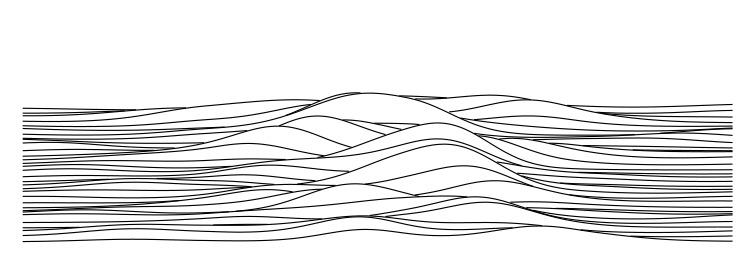
Plotting with more than one pen
Some pieces are built for several pens — a two-tone circle packing, photo-weighted circles split by size, or any generator with Colour By switched on, which splits the lines along the rule that built them: a tree's trunk and canopy, a growth's old and new edges, a Truchet tiling's two orientations. Each pen becomes its own layer in the exported SVG.
Almost no pen plotter changes pens by itself. A few machines have a tool changer, but on an AxiDraw, an iDraw, a Brachiograph or a converted 3D printer, the pen change is something you do with your hands, between layers. Forgeplot's job is to make that clean: every layer is drawn from the same origin, so the colors register exactly — as long as the paper doesn't move.
Clip the paper down, and don't move it again
Tape or clip all four corners. The paper has to stay put for the whole piece — every layer is drawn from the same origin, and that's what makes the colors line up. If the paper shifts between layers, the drawing won't register.
Load pen 1 and plot layer 1 only
Forgeplot names the layers in drawing order — 1 - Black 0.3, 2 - Red 0.5, and so on — so you always know which is which.
- Inkscape + AxiDraw extension: open Extensions → AxiDraw → Plot, go to the Layers tab, and choose Plot only the layer(s) with this name or number, entering 1.
- saxi: deselect the other layers in the layer list before you plot.
- Anything else: hide or delete the other layers, plot, then undo. Every plotter tool that reads SVG understands layers.
Swap the pen — leave the paper alone
When layer 1 finishes, the carriage parks and the machine goes idle. Loosen the pen holder, put in the next pen, and set the pen height the same way you did for the first one. Don't touch the paper, and don't re-home the machine if your software offers to.
Plot the next layer, and repeat
Same as step 2, with the next layer number. Work through the layers in order until the piece is done. Two-pen pieces take two passes; a three-pen set takes three.
A tip worth the ten seconds: before you commit good paper, run the whole thing once with the pen lifted (or a pen with the cap on) to confirm the layers land where you expect.
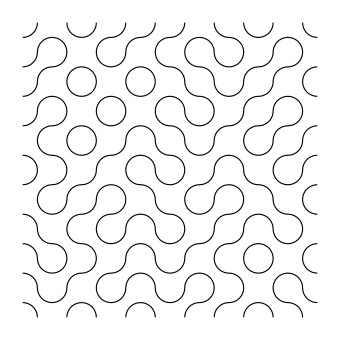
Save it as a wallpaper or print
Not plotting today? Every piece also exports as a crisp image.
Tap Export → Wallpaper / Print.
Pick a size — your iPhone, your iPad, a Mac desktop, 4K, or square for social.
Choose Recompose (regenerates the piece to fill that exact shape — recommended) or Fit (keeps the plotter composition, adds a border).
Save to Photos, then set it as your wallpaper from there.
Because the art is true vector, it's razor-sharp at any size, and a wallpaper always matches its plotter twin.
Tips for great plots
- 01 Start simple.A single-pen piece on plain paper is the fastest way to a great first result. Add colors and complexity once you know your machine.
- 02 Match the pen to the setting.Fine liners (like a 0.3–0.5 mm Micron) suit detailed work; set the pen width in the app so shading and hatching space themselves correctly for your pen.
- 03 Good paper matters.Smooth, heavier paper (marker or mixed-media stock) drags less and bleeds less than copy paper.
- 04 Watch the plot time.Dense pieces (fine hatching, TSP portraits) can take a while — the plot preview shows an estimate before you commit ink.
- 05 Save the recipe.Loved a result? It's stored by seed and settings, so you can plot it again later at a different size or on different paper — identically.
FAQ
Do I need a pen plotter to use the app?
No. You can make and export wallpapers and prints without one. A plotter just lets you draw your art with a real pen.
Which plotters work?
AxiDraw, iDraw / UUNA TEK, and most XY pen plotters that accept SVG. The app includes size presets for common models, plus a custom size for anything else.
Can I plot straight from my iPhone or iPad?
Not directly — pen plotters connect to a computer over USB, so you export the file and plot it from your Mac or PC. The app makes that handoff one tap (AirDrop or Files).
What's "single-line" / "single-stroke" art?
A pen plotter draws with a single pen, so everything is lines — no solid fills. Forgeplot builds every design this way from the start, which is why it plots cleanly (and why the art has that distinctive drawn look).
Why SVG?
SVG is the standard file that pen-plotter software reads, and it stays perfectly sharp at any size. It's also how the app keeps your plot and your wallpaper looking identical.
Can I turn a photo into art?
Yes — some styles take a photo (from your library or camera) and redraw it as hatching or as one continuous line.
Can I sell what I make?
The art you create is yours to print, plot, and sell.